> For the complete documentation index, see [llms.txt](https://copilot-docs.bugbase.ai/llms.txt). Markdown versions of documentation pages are available by appending `.md` to page URLs; this page is available as [Markdown](https://copilot-docs.bugbase.ai/enterprise/how-to-trigger-an-external-scan/configure-scan-settings-for-external-assessment.md).
# Configure Scan Settings for External Assessment
Reference for external Run Assessment scope and scan settings.
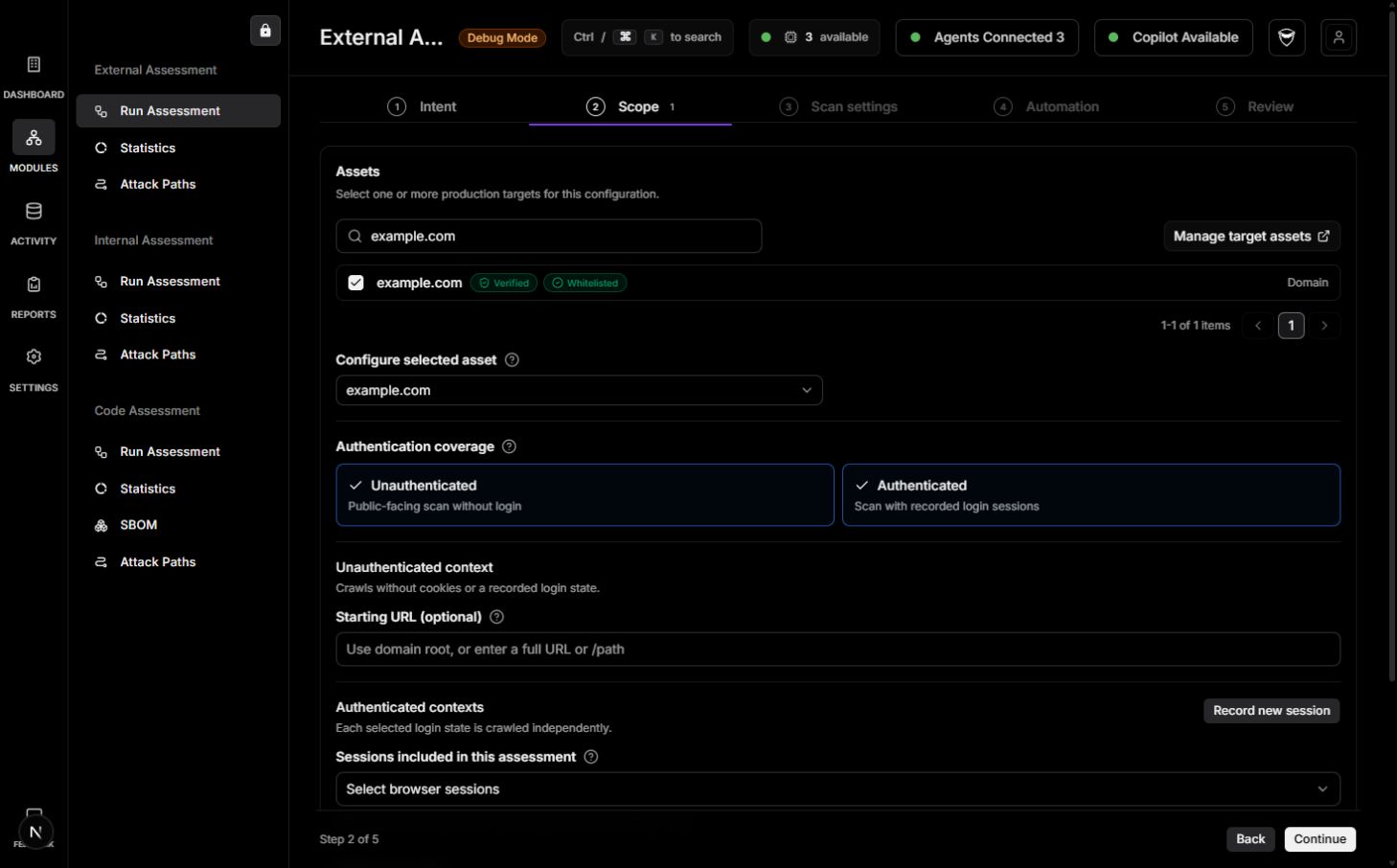
Open **Modules -> External Assessment -> Run Assessment**. Authentication and starting URLs are configured per asset in **Scope**; traffic, vulnerability, browser, and runtime controls are configured in **Scan settings**.
## Scope Settings
### Authentication Coverage
| Context | Behavior |
| ------------------- | ----------------------------------------------------------------------- |
| **Unauthenticated** | Crawls and tests without a recorded login state. |
| **Authenticated** | Runs each selected browser session as an independent logged-in context. |
| **Both** | Covers the public surface and every selected login state independently. |
Authenticated coverage requires at least one selected browser session. Validate sessions before important scans and re-record sessions whose authentication has expired.
Select the contexts that should be included in the run.
### Starting URLs
Starting URLs are optional and belong to a specific coverage context.
* Enter an absolute path such as `/docs` or a full HTTP(S) URL on the selected asset.
* Leave the field empty to begin at the domain root.
* A browser session can have its own captured scan starting page.
### Browser Sessions
Use one session per account or role that needs independent coverage. The scan uses the session context and tags to distinguish roles and evaluate privilege boundaries.
Before selecting a session, confirm:
* recording completed successfully;
* authentication validation passed;
* its egress is compatible with the scan egress;
* the account remains authorized and active.
### Explore Manually
Manual Crawler is available only in **Debug Mode**. **Crawl as** selects one explicit logged-out or recorded-session context. It does not change the assessment's selected authentication coverage.
## Rate Limit and Egress
### Egress
* **Sandbox egress** uses the selected scanner location.
* **Residential egress** uses the configured residential proxy location when available.
Keep recording, validation, and assessment egress consistent for targets that restrict traffic by IP or country. A target that refuses a different egress can make a healthy browser session appear expired.
### Request Rate
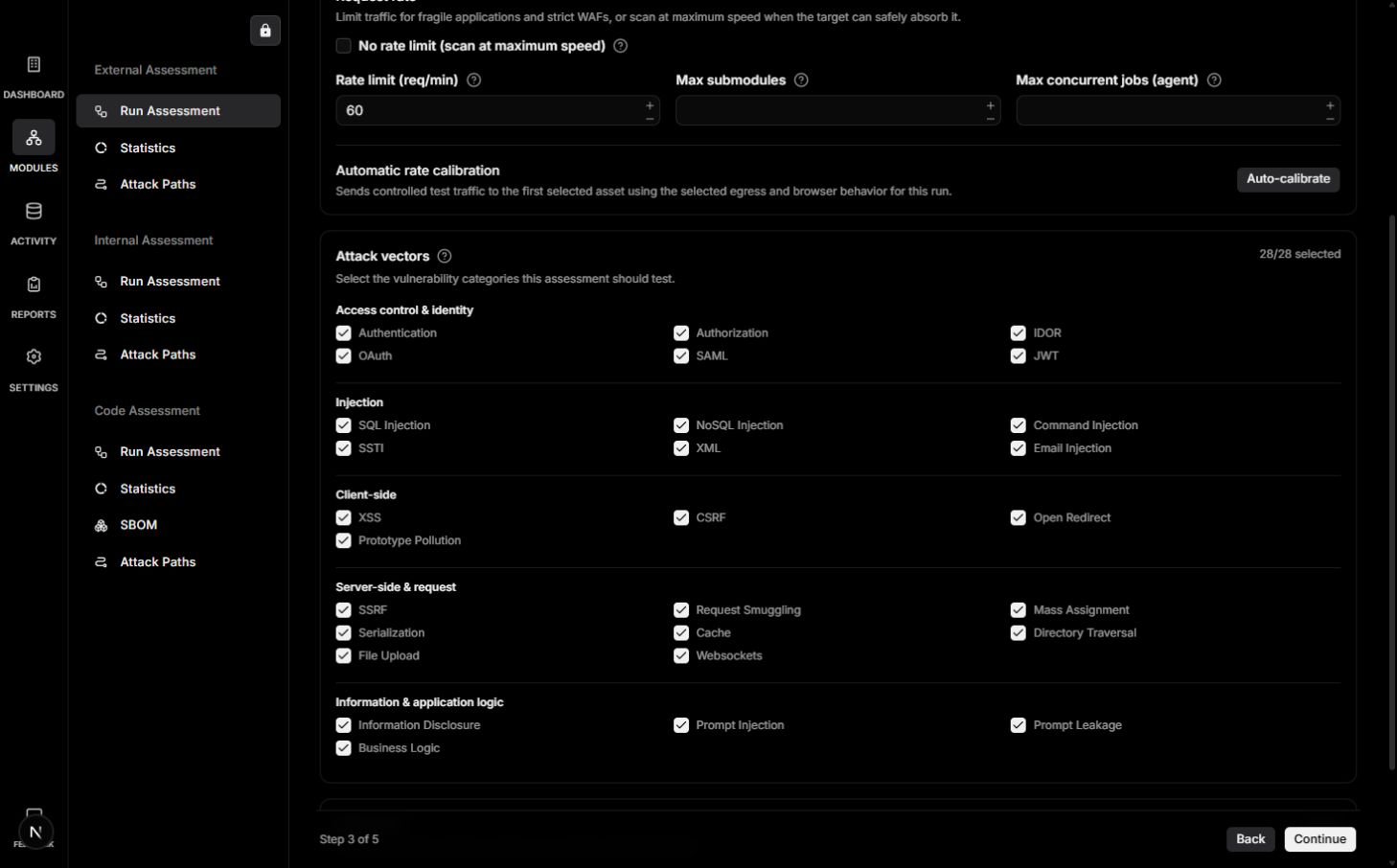
**Rate limit (req/min)** is the maximum request rate sent to the target. Lower it for production systems, strict WAFs, or fragile applications.
Enable **No rate limit** only when the target owner has confirmed that maximum-speed traffic is safe.
### Auto-Calibrate
**Auto-calibrate** sends controlled traffic to the first selected asset using the current egress and browser behavior. When calibration completes, review the completion message and the resulting recommended limit before continuing.
Calibration can fail when the target is unreachable, blocks the chosen egress, or no compatible worker is available.
### Optional Concurrency Caps
* **Max submodules** limits how many submodules may run concurrently for the target.
* **Max concurrent jobs (agent)** limits jobs used on the selected agent.
Leave either field empty to use the calibrated or agent-configured limit.
Rate and concurrency controls are independent.
## Attack Vectors
Attack vectors select the vulnerability categories tested by an Assessment intent. All available categories are selected by default for broad coverage.
Disable categories that are outside the approved engagement. The available list can include access-control, injection, client-side, server-side, request-handling, information-disclosure, and application-logic tests.
## Advanced Settings
Expand **Advanced** only when the default behavior is unsuitable.
### Trajectory Scope
Trajectories are discovered browser flows or API sequences. Search and select trajectories to narrow the assessment to specific workflows. If no useful trajectories exist, run Discovery or record/explore the missing flow first.
### Custom Headers
Custom headers are sent with eligible external requests. Use them for approved routing, test identifiers, or target-required headers. Do not place secrets in headers unless the engagement requires them and their handling has been approved.
### Browser and Validation Controls
Depending on deployment capabilities, advanced browser controls can include:
* failing the run when a selected browser session is invalid;
* skipping pre-run session validation;
* residential browser traffic;
* browser isolation or shared-browser behavior;
* maximum crawler runs;
* continuing when a baseline response resembles a not-found page.
Keep the safer defaults unless you understand the effect on authentication accuracy, traffic, and isolation.
### Runtime Limits
Runtime limits stop remaining work after the configured duration. They do not guarantee that every selected submodule finishes before the limit.
## Review
The final **Review** step is the source of truth for the submitted run. Confirm:
* intent and selected assets;
* authentication contexts and browser-session readiness;
* egress, rate, and concurrency;
* attack vectors and trajectory scope;
* advanced overrides;
* schedule or immediate-start behavior;
* estimates, warnings, and validation errors.
Use **Start run** for an immediate run or **Schedule run** when Automation contains a schedule.